The viewer
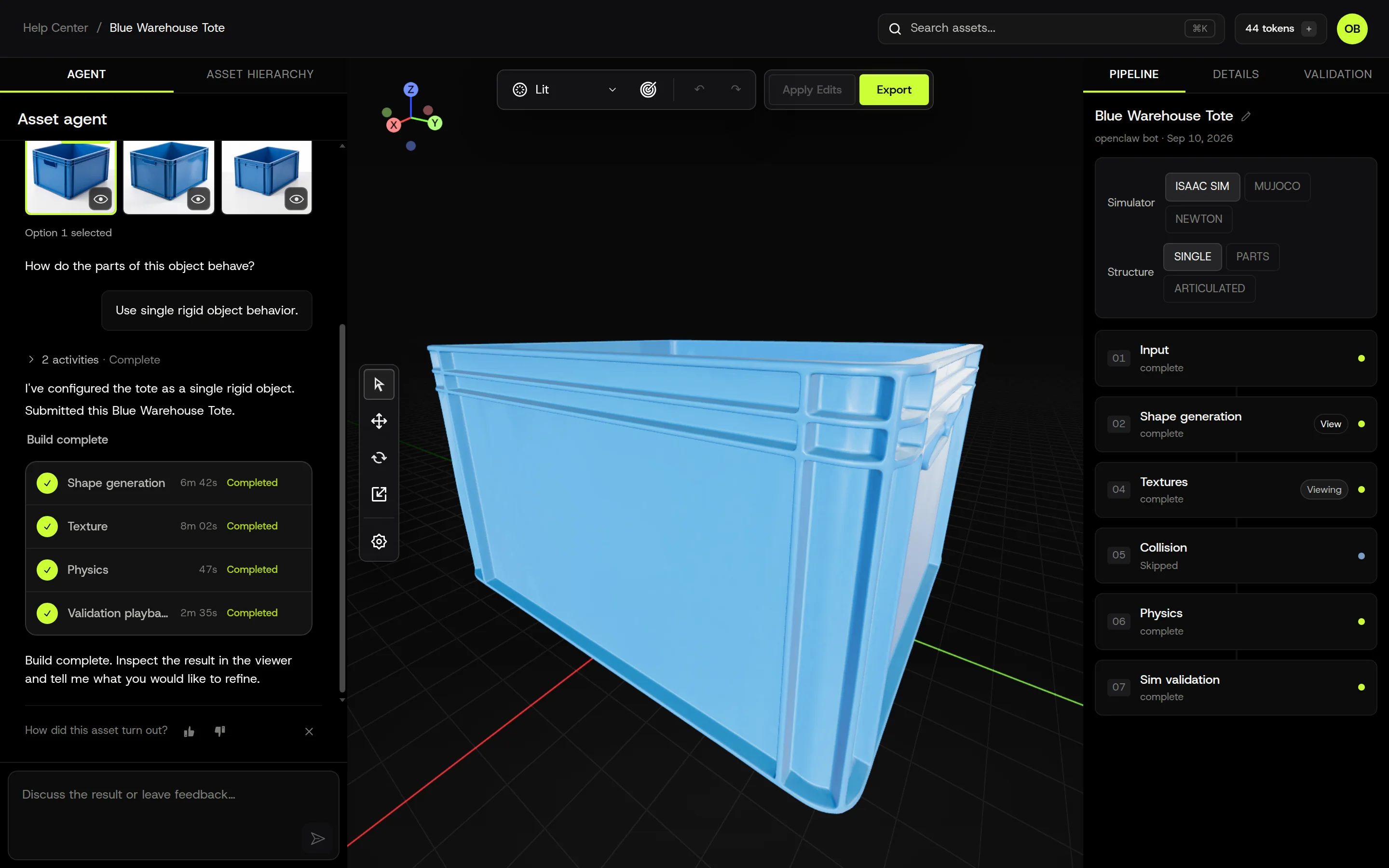
The viewer is the asset page. The Agent and Asset hierarchy tabs are on the left, the 3D stage is in the middle, and the Pipeline, Details, and Validation tabs are on the right. It loads the asset’s simulation file directly, so what you see is what the simulator will load.
Stage controls
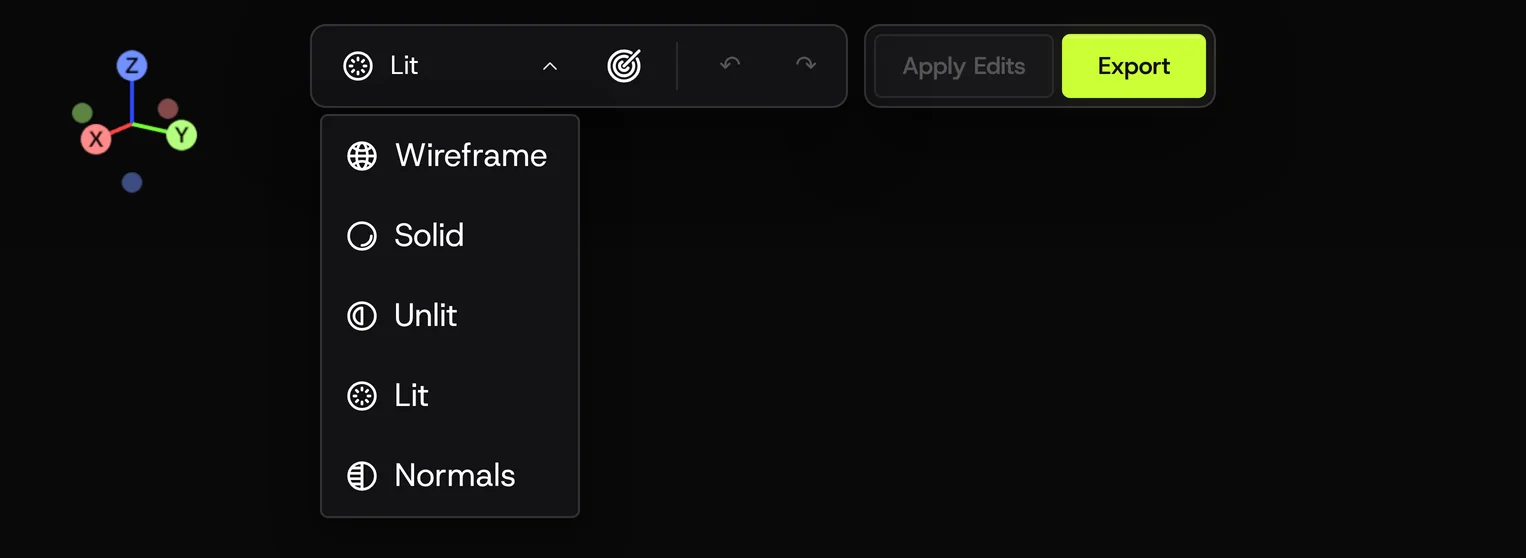
Section titled “Stage controls”View mode (top of the stage): Wireframe, Solid, Unlit, Lit (default), Normals. Wireframe is the quickest way to see triangle density; Normals shows surface orientation problems.
Transform tools (left edge of the stage): select, move, rotate, plus a focus button and viewer settings. Changes are staged; nothing is written until you Apply Edits. Undo and redo are next to the view mode.
Axis gizmo (top left of the stage): shows the asset’s authored frame. The colored floor lines are the X (red) and Y (green) axes.
Asset hierarchy
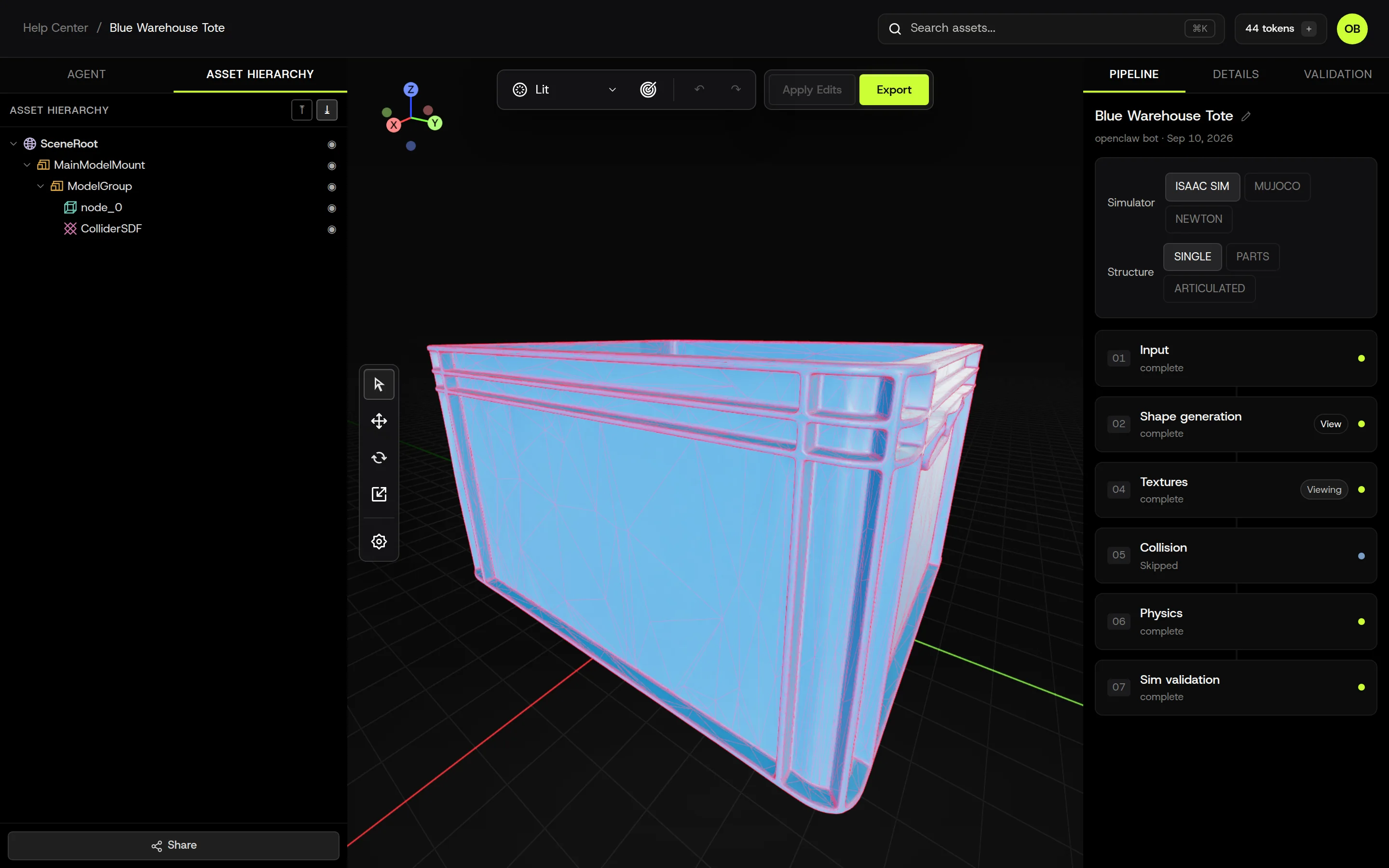
Section titled “Asset hierarchy”The tree on the left lists every node in the asset: the scene root, the model mount, the shape, its mesh nodes, and the collider. Click a row to select it; the circle on the right toggles visibility.
The collider row is hidden by default. Turn it on to see the collision shape overlaid on the model in red. Convex hulls appear as faceted shells; SDF collision appears as a dense red surface that follows the geometry exactly.
Pipeline tab
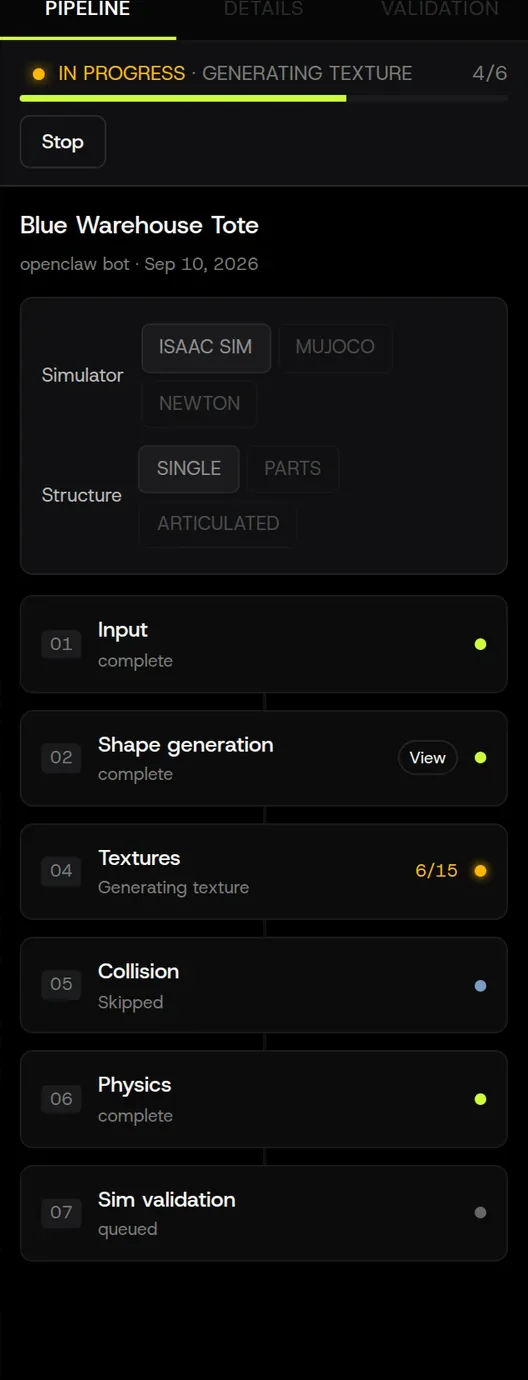
Section titled “Pipeline tab”The stages of the build, with status and timings. After the build completes, each stage expands to show the settings that were used (mesh quality, triangle count, collision level, and so on). Some stages have a View button to show that stage’s output in the stage, for example the untextured shape before textures were applied. How the pipeline works
Details tab
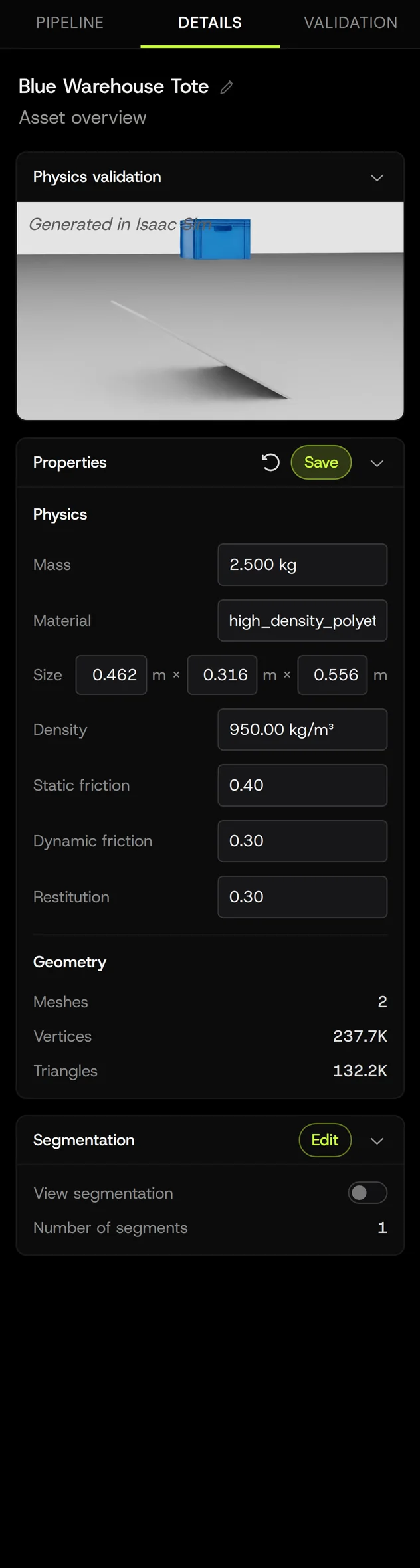
Section titled “Details tab”Physics and geometry values for the asset, plus a still image of the validation run in the target simulator.
- Physics: mass, material, size (three dimensions in the asset’s units), density, static and dynamic friction, restitution. Press Edit to change any of them and Save to commit. Editing
- Geometry: mesh count, vertices, triangles.
- Segmentation: number of segments, with a link to view them.
Validation tab
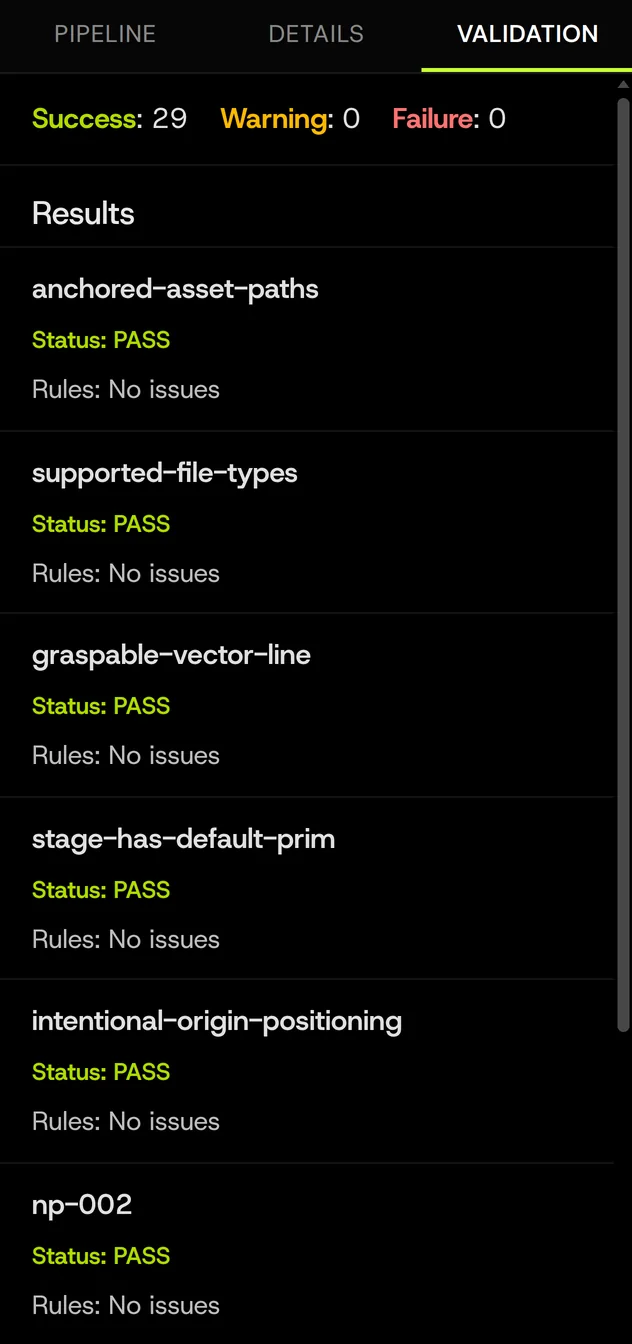
Section titled “Validation tab”The results of every check the simulator ran on the asset, grouped by rule, with a pass/warning/failure count at the top. A failing rule names what was wrong, which is the first thing to read when a build stops at Sim validation. Why did my asset fail?
The Share button under the Asset hierarchy creates a read-only link to the viewer for people outside your workspace.
Related: Editing, Pipeline, Simulators and exports.