Why did my asset fail?
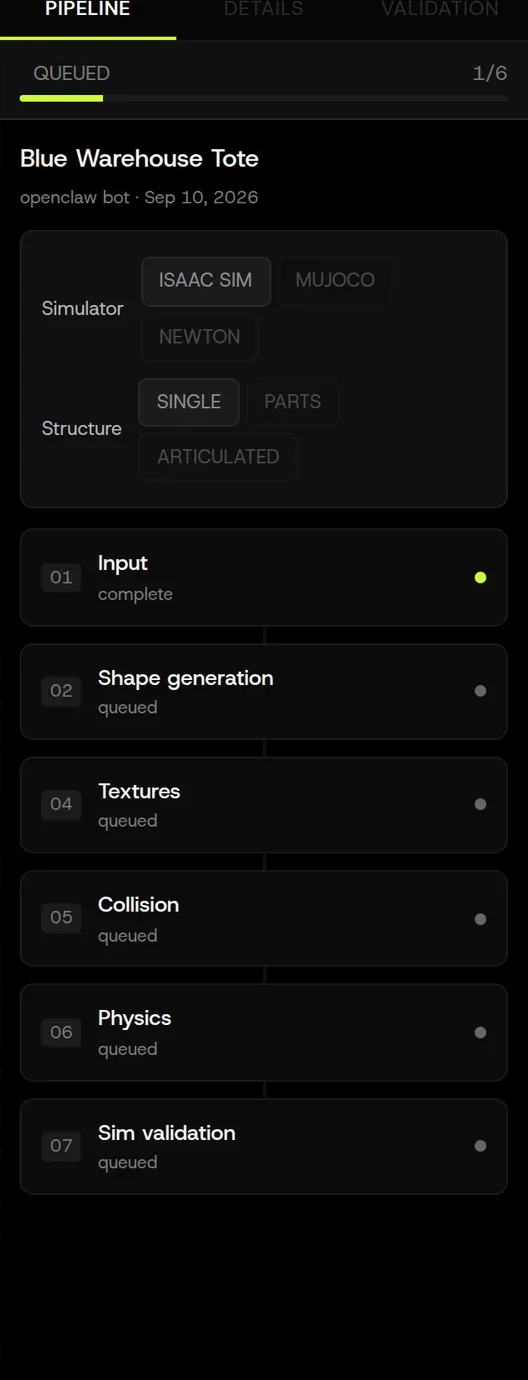
Start with the status badge on the asset, then the red stage in the Pipeline panel. This page is organised the same way. Short answers for symptoms that aren’t failures (white asset, wrong scale, fused parts) are in the FAQ.
Statuses
Section titled “Statuses”| Status | Meaning | Do this |
|---|---|---|
| SUBMITTED | Accepted, being scheduled. | Nothing. Usually seconds. |
| QUEUED | Waiting to start processing. | Nothing. Queue time depends on load; a few minutes is normal, longer at peak. If it’s been more than 30 minutes, see stuck in queued. |
| PROCESSING_IMPORT | A stage is running. Progress in the Pipeline panel. | Wait. You can leave the page. |
| MESH_GENERATED / TEXTURE_GENERATED | Intermediate checkpoints during a build. | Nothing. |
| PROCESSING_PAUSED | A normal checkpoint between stages, or a credit pause. | If billing.paused is false and run.awaitingContinue is true, keep polling; Palatial resumes automatically in about a minute while the balance is above 0. If billing.paused is true with pauseReason: insufficient_credits, add tokens so the net balance is positive and keep polling the same asset. |
| READY | Done. Outputs are available. | Inspect, edit, export. |
| PROCESSING_FAILED | A stage could not complete. | Read the stage message below the badge, find the stage in the sections that follow, fix or retry. |
| PROCESSING_CANCELED | You, a teammate, or the API stopped it. | Stages that did not complete are not charged. Regenerate when ready; the retry charges its own completed stages. |
| DRAFT | Delivered by a research-driven build but not yet accepted. | Review the draft in the viewer; accept it to make it the asset’s current build, or request changes. |
Stuck in queued
Section titled “Stuck in queued”QUEUED for more than about 30 minutes usually means one of:
- Workspace capacity. Each workspace has a number of concurrent active assets. If it’s full, new ones wait. The workspace header shows active capacity; cancel or wait for another asset to finish.
- Platform load. During heavy use the queue lengthens for everyone. Status is visible in the dashboard banner.
- A previous build didn’t release its slot. Rare. Cancel the stuck asset and regenerate; if it stays stuck, contact support with the asset link.
Failure by stage
Section titled “Failure by stage”Find the stage named in the failure message. Each section lists the likely causes and what to try. Retry when it is offered; only stages that complete in the retry are charged.
The Agent didn’t get your message
Section titled “The Agent didn’t get your message”- “Your message did not reach the agent. Please try again.”: a connection problem between your browser and Palatial, not a build failure. Nothing was charged. Send the message again; if you were answering a question with a chip, you can type the answer instead.
Input / upload
Section titled “Input / upload”- “Attachment rejected”, “upload incomplete”, “unsupported file”: the file didn’t arrive whole or isn’t a supported type. Re-add it; the Agent retries the upload. Supported types: Image, CAD.
- “Description required”: Image to Sim needs a text description as well as the photo. Add one line.
- “No object detected”: the photo has no clear subject or it’s too small in frame. Retake closer on a plain background, or crop.
- “Multiple objects”: the Agent is asking which one. This is a pause, not a failure. Answer in the chat.
Shape generation (02)
Section titled “Shape generation (02)”- “Reconstruction failed”, “non-manifold”, “mesh generation error”: the reference didn’t reconstruct. Try: pick another candidate image; try another available Shape model; add a view; simplify the prompt. Retry with the same reference sometimes succeeds; a completed retry stage is charged when it finishes.
- “Reference generation failed” (Text to Sim): the image generator didn’t produce a usable candidate. Reword the prompt (object type first, material, no scene), regenerate the candidates.
- “Generation service unavailable” / “Account limit”: a temporary service limit or availability issue blocked the stage. Wait a few minutes and retry.
Segmentation (03)
Section titled “Segmentation (03)”- “Segmentation produced no parts”: for Parts/Articulated, the mesh couldn’t be split. Say where the boundaries are (“lid and body”), or set Behavior to Single object.
- “Too many parts”: usually CAD with every fastener as a body. Tell the Agent what to merge, or export the CAD with sub-assemblies merged.
- “Joint inference failed” (Articulated): describe the motion (“the drawer slides out on the front face”). If the object has no real joints, use Parts.
Textures (04)
Section titled “Textures (04)”- “Texture bake failed” / “UV unwrap failed”: usually a mesh with very thin or overlapping faces. Rerun with Repair mesh on and a lower Mesh density, or for CAD turn Apply textures off to keep source materials.
- “Texture generation timeout”: usually transient. Retry.
Physics (05)
Section titled “Physics (05)”- “Zero volume” / “mass estimate failed”: the mesh isn’t closed, so volume can’t be computed. Rerun shape generation with Repair mesh on, or set mass manually in the Physics panel and Apply Edits.
- “Unknown material”: name the material in chat.
Collision (06)
Section titled “Collision (06)”- “Convex decomposition failed”: extremely thin or degenerate geometry. Lower the Collision level (fewer hulls), or use SDF on Isaac Sim, or repair the mesh.
- “Hull count exceeded”: the part is too complex for the level. Lower the level for that part, or split the part.
Simulation validation (07)
Section titled “Simulation validation (07)”Open the Validation tab on the right to see every check and which one failed.
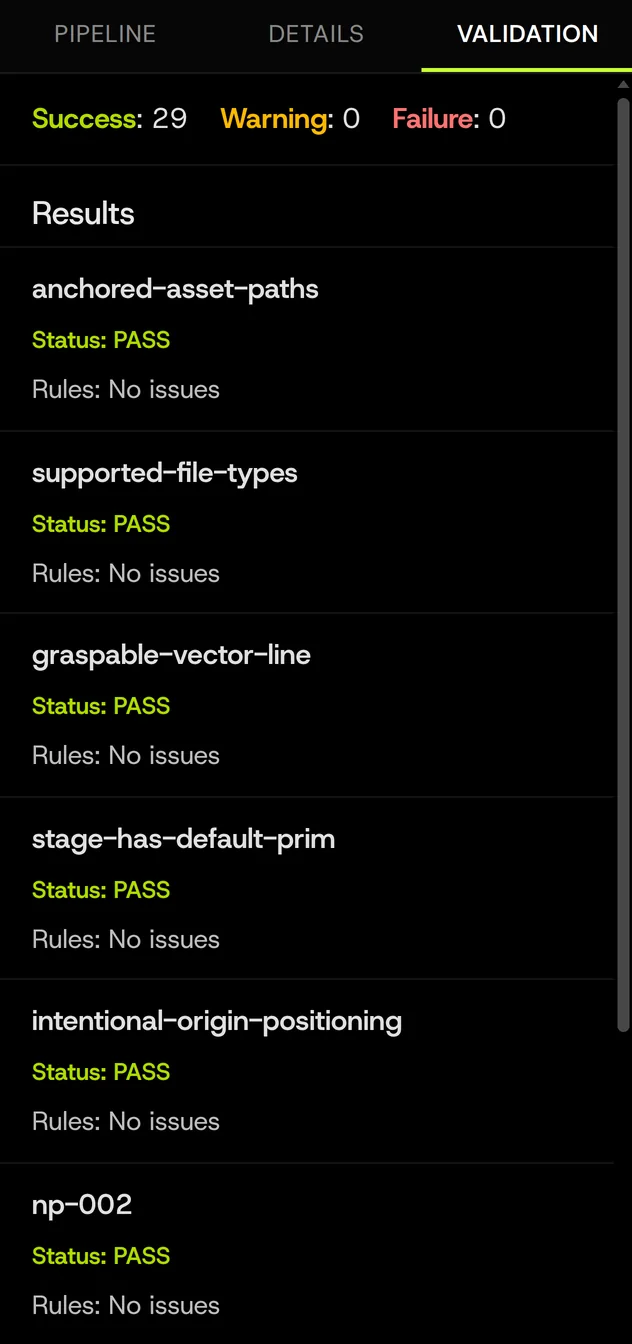
- “Rest test failed” / “object does not settle”: the object jitters or falls through. Common causes: collision hulls that intersect each other, a rest pose that isn’t stable, a mass of zero. Look at the Collision view; raise the collision level or switch to SDF; set a correct rest pose; check mass.
- “Joint range failed”: a joint can’t move through its limits without self-collision. Edit the joint limits or the collision level of the colliding parts.
- “Penetration exceeds tolerance”: collision shapes overlap the ground or each other at rest. Same fixes as above.
- “Simulator unavailable”: validation is temporarily unavailable. Retry when offered or contact support; do not treat an unvalidated export as simulation-tested.
Export
Section titled “Export”- “Export failed”: the package couldn’t be built. Retry. If it repeats, the asset may have a part with no geometry; check the Parts view.
- “Not allowed” on export: you are a Guest in this workspace, or the asset belongs to a workspace your API key does not cover. Exports themselves are free. Roles and permissions.
Cancelling
Section titled “Cancelling”Stop on the asset, or the documented cancellation endpoint in the API, cancels a queued, running, or paused build. Stages that did not complete are not charged; the receipts show only completed-stage charges.
When to contact us
Section titled “When to contact us”If the failure repeats after one retry and one input fix, or the message isn’t listed here, select Submit a request below or email [email protected]. Include:
- The asset link (the URL of the viewer page). It contains the asset ID, which is all we need to find the run.
- The status text and stage message, copied.
- What you were trying to do, in one line.
The asset link and the error text are usually enough. Never include API keys in your request; if we need your input files we will ask for them privately.