Editing an asset after generation
A finished asset is not final. Most fixes are a sentence to the Agent or a field in a panel, and only the stages that depend on the change run again. This page lists every kind of edit, what it reruns, and whether it costs tokens.
The four actions
Section titled “The four actions”| Action | What it does | Reruns | Tokens |
|---|---|---|---|
| Apply Edits | Commit changes you made in the viewer (scale, move/rotate, joint edits) and, where applicable, edited segmentation to the asset. | Textures only when scale changed; collision (when applicable); simulation validation. Shape and segmentation are not regenerated. | Each completed rerun stage is charged. |
| Reprocess | Rerun the pipeline from a stage you choose, on the existing inputs, optionally with changed settings. Can stop after that stage or run through to the end. | The chosen stage, and everything after it if you pick “run through”. | Each completed rerun stage is charged. |
| Regenerate | Rerun from shape generation (or a later stage) with a new reference, prompt, or settings, in place or as a variant. | The chosen stage and every later stage. | Each completed stage is charged; a variant has its own run and charges independently. |
| Retry | Start a new run after a build failed or was cancelled. Offered on the failure card. | A new run of the charged stages. | Only stages that complete in the retry are charged. |
Edits by what you want to change
Section titled “Edits by what you want to change”Scale, position, orientation
Section titled “Scale, position, orientation”The most common fix. In the viewer, use the transform tools (move / rotate / scale) or give the Agent a size (“it should be 42 cm tall”). Then Apply Edits. A scale change reruns textures, collision, and validation; a move or rotate reruns collision and validation. Completed rerun stages are charged.
Joints
Section titled “Joints”In the viewer, select the joint and edit its type, axis, and range, then Apply Edits (this is the “joint edit” mode). Collision and validation rerun; authored physics values are carried into the rerun. Completed rerun stages are charged.
Physics
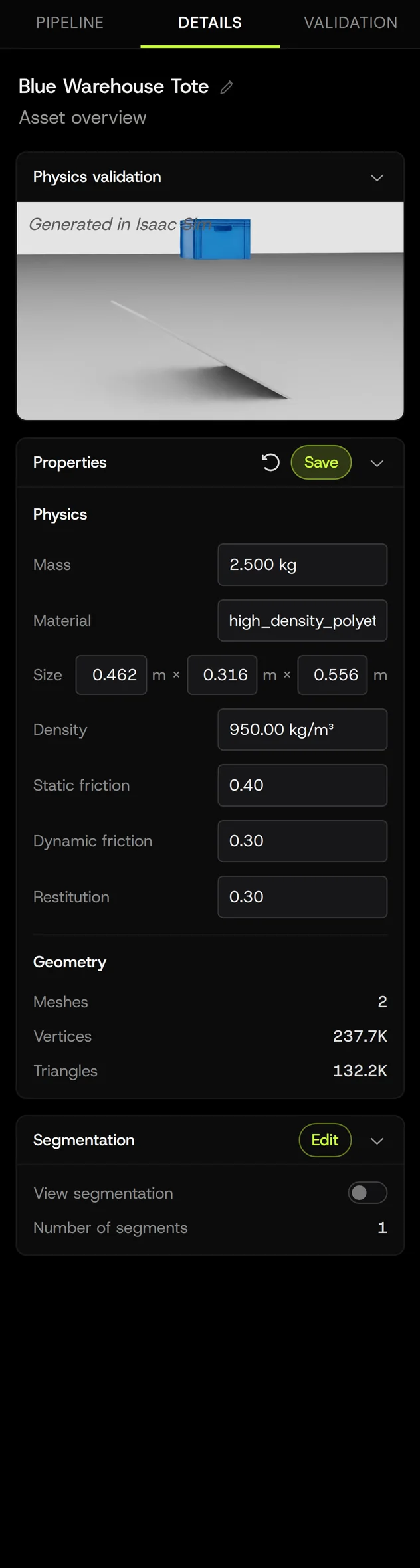
Section titled “Physics”Open the Details tab, press Edit next to Properties, change mass, material, size, density, friction, or restitution, then Save. Changing material here does not repaint textures; it changes the physical properties only.
Collision shapes
Section titled “Collision shapes”Change the Collision level in the build settings and Reprocess from the collision stage. Low and SDF collision add nothing to a quote; Medium and higher add a small line item.
Parts and articulation
Section titled “Parts and articulation”- Fused parts (Behavior was Single object): regenerate with Parts or Articulated. This reruns from segmentation; completed stages are charged as they finish.
- Too many parts or a wrong split: tell the Agent which pieces belong together (“the four screws are part of the base”), or edit the segmentation in the viewer and Apply Edits; segmentation reruns from the existing mesh with your edits and textures/physics follow.
- Missing joint: “the handle should rotate around the pin”. Segmentation and articulation rerun.
Textures
Section titled “Textures”- Wrong look: ask for a repaint (“brushed aluminium, not painted”). Reruns from the texture stage.
- Glass: tell the Agent which part should be glass (“the window on the door is glass”). Textures rerun with Replace glass applied to that part.
- CAD materials overwritten: turn Apply textures off and rerun from the texture stage. On a CAD asset with textures off, the texture line item is dropped from the quote.
Geometry
Section titled “Geometry”- Wrong shape, missing detail, invented back side: this is a regenerate from shape generation. Attach a better photo or add a view, adjust the prompt, or switch the shape model, then confirm the quote. Multi-view images (2 to 4) change the shape line item; more than 4 photos routes the build to the parametric model.
- Too many triangles: adjust the mesh quality setting and regenerate from shape generation. Regenerate reuses the asset’s saved inputs and does not create new reference images, so the reference-image line item is not charged again.
The reference
Section titled “The reference”Pick a different candidate image, upload a new photo, or ask the Agent to generate a cleaner reference from your existing one. Any of these is a regenerate from shape generation, and the confirmation card shows the cost before anything runs.
What is preserved when you regenerate
Section titled “What is preserved when you regenerate”- The asset’s name, ID, workspace, members, and conversation history.
- Earlier pipeline runs remain in the asset’s run history. The viewer shows the current run.
- Apply Edits carries your authored physics and joint values into its rerun.
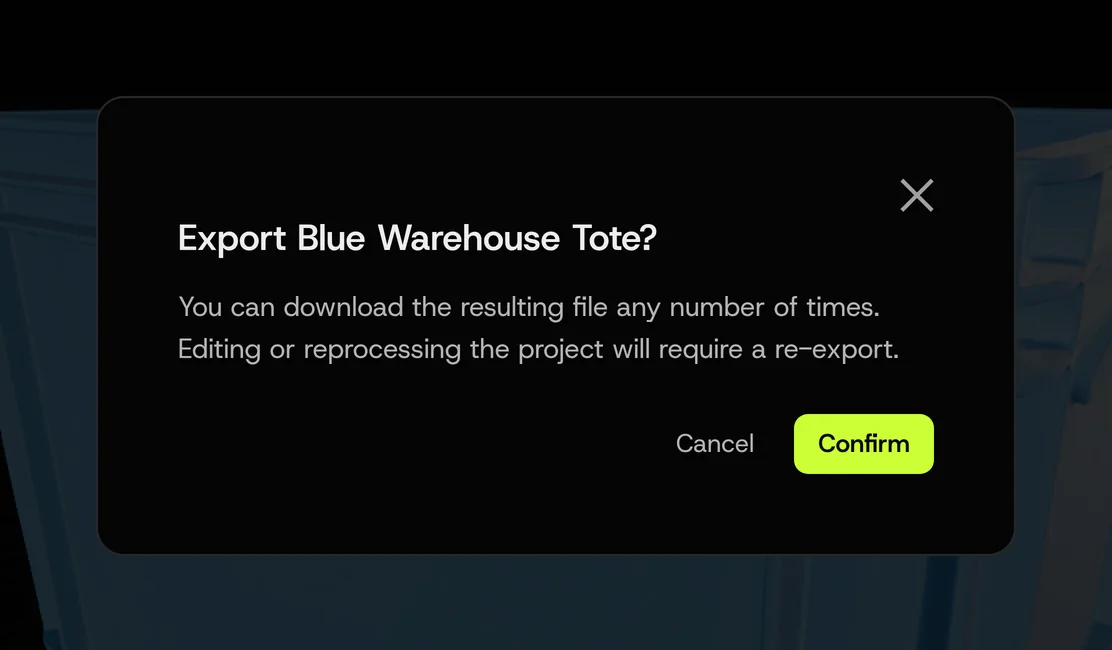
An in-place rerun replaces the previous export; a new export is produced when the run completes. If you need to keep the current result exactly as it is, export it first or make a variant instead of editing in place.
What is discarded
Section titled “What is discarded”- Outputs of every rerun stage. A texture rerun replaces the old textures; a shape regenerate replaces everything from shape generation on.
- The previous export of the asset when you rerun in place.
Failed stage retry
Section titled “Failed stage retry”When a build fails or is cancelled, the failure card names the stage and offers Retry. Retry starts a new run and charges only its completed stages. If the failure was caused by the input (an unreadable file, a photo with no object), retrying gives the same failure; fix the input first. Why did my asset fail?
Variants versus editing
Section titled “Variants versus editing”If you want to keep the current asset and also have a different one, make a variant instead of editing. A variant is an independent run and charges its completed stages. Editing changes this asset in place.
Permissions
Section titled “Permissions”Workspace Members (and organization owners/admins) can edit, apply edits, reprocess, regenerate, and retry. Guests can inspect but not change. Roles and permissions.
From the API
Section titled “From the API”POST /assets/{id}/reprocess/quote then POST /assets/{id}/reprocess reruns in place from a chosen stage (from, with mode: step to stop after it or mode: auto to run through, optional stopAfter, optional setting overrides in parameters, and the signed quoteId). Variants are separate assets created with POST /assets/{id}/variants; the reprocess endpoint rejects destination: variant. Apply Edits from the viewer uses POST /assets/{id}/apply-edits/quote and an Apply Edits session. Using the API.