Codex CLI and Claude Code
Generate simulation assets from text, images, or CAD without leaving your coding workflow. This is Palatial’s public thin client: a command-line application and a local MCP server. It uploads selected inputs to the Palatial API, tracks assets, and downloads export ZIPs. Generation remains on Palatial’s hosted service. The Agent API is Experimental and available in Production. The client package below is a prerelease; use a workspace API key and the production API origin below. An API READY status means outputs are available; it does not certify your simulation task.
How it works
Section titled “How it works”You need a Palatial workspace API key. The coding agent calls the local MCP client, which authenticates requests to Palatial’s existing hosted API at https://dashboard.palatial.cloud/api/v1/external/. Palatial performs the generation on its servers. The client checks the returned asset ID and downloads the completed export.
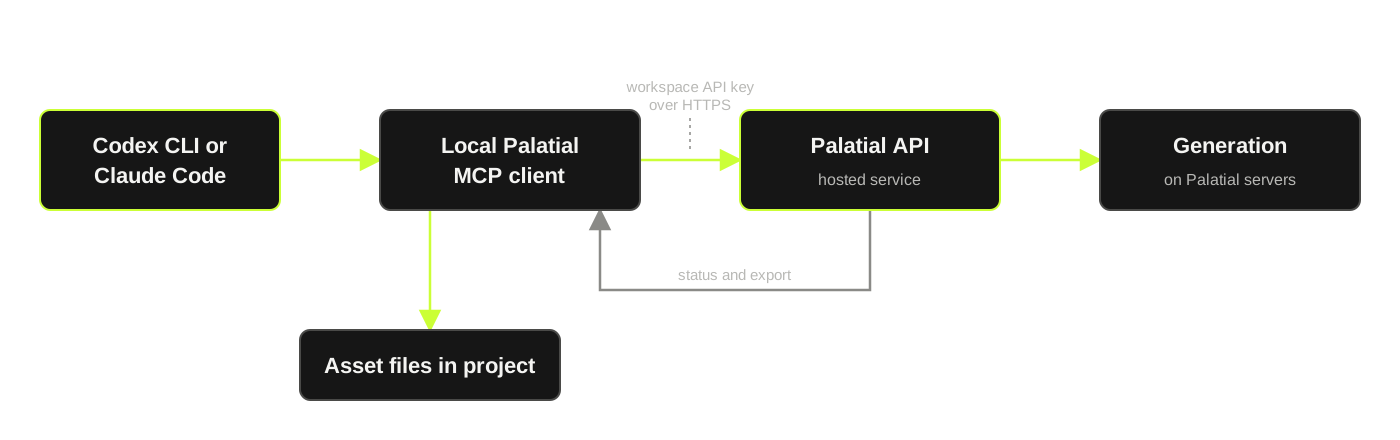
MCP provides the palatial_agent tool the coding agent can call; it does not replace the Palatial API. This release uses your existing API and requires no new customer-hosted service. A Palatial key is separate from your other provider credentials.
Install
Section titled “Install”You need Node.js 22 or newer, a Palatial workspace API key, and Codex CLI or Claude Code. Generation and export use your Palatial workspace credits. Your coding agent’s subscription or API charges are separate. Install the versioned package from the official GitHub Release:
npm install --global https://github.com/PalatialSim/palatial-agent-tools/releases/download/v0.1.23-dev.0/palatial-agent-tools-0.1.23-dev.0.tgzpalatial-agent --versionexport PALATIAL_API_URL=https://dashboard.palatial.cloud/api/v1/external/palatial-agent loginpalatial-agent doctorlogin prompts for your workspace API key with input hidden, checks it through a read-only API call, and saves it locally. Obtain the key in Palatial dashboard workspace settings. Do not paste it into your coding-agent conversation. The npm-compatible package is distributed through GitHub Releases. It is not yet published to the npm registry. The package name @palatial/agent-tools is metadata, not a currently verified npm installation target.
Codex CLI
Section titled “Codex CLI”palatial-agent setup --client codexcodexStart a fresh session, then ask:
List the connected Palatial tools and confirm that palatial_agent is available. Do not call it yet.
Claude Code
Section titled “Claude Code”palatial-agent setup --client claude-codeclaudeUse /mcp to inspect the connection, then ask for the same tool-list check. To configure both clients, run palatial-agent setup –client both. Preview every planned change with –dry-run. Setup adds a server named palatial in the user’s client configuration, and for Claude Code it also installs the Palatial skill described below. Review or remove an existing server of that name first. Setup will not overwrite a skill folder it did not create, including one you have edited or replaced with a link, and it reports a non-zero result if any part of setup did not complete. It does not modify your project instructions or other servers. If you move this installation or change the Node.js executable, rerun setup. The client runs over stdio: your coding agent starts it as a local process. You do not need Docker, a local GPU, an inbound port, or your own hosted MCP server. Internet access to Palatial and its export storage is required.
Live docs and generation settings
Section titled “Live docs and generation settings”Use palatial-agent docs to check live documentation. If guidance and the installed schema differ, update the package and restart your coding agent.
Describe the object, dimensions, simulator and requested changes in message. The hosted Agent reads the project’s saved state and chooses supported settings. You do not need separate tools for creation, progress, modification or downloads. See the Agent API for availability and limits.
Create your first asset
Section titled “Create your first asset”In either coding agent:
Use Palatial to generate a rigid plastic storage bin for Isaac Sim. Save the asset ID, check its status, and download the completed export into ./assets/storage-bin. Report which validation checks were actually performed. For an image: Use Palatial to turn ./references/bin.jpg into a rigid Isaac Sim asset. Use only that file as input. Download the completed export into ./assets/bin. For CAD: Convert ./cad/gripper.step using ./references/gripper.png with Palatial. Its up axis is Z. Target Isaac Sim and keep the export in ./assets/gripper. A CAD reference image is optional. Supply one when you want textures generated from it. Convert the file on its own and it is built untextured: Convert ./cad/gripper.step with Palatial. Its up axis is Z. No reference image. Target Isaac Sim and keep the export in ./assets/gripper. Specify the target simulator, dimensions, and articulation requirements when known. What you must state about the source frame depends on the file you upload: a direct mesh (OBJ, GLB, GLTF, STL, PLY, FBX) needs its up axis plus its scale, given either as source units or as the exact number of metres one source unit represents; STEP and IGES need only the up axis; USD files use the orientation and scale already stored in the file, so you do not supply either. Reference images can be PNG, JPEG, or WebP. Supported engine request values are isaac_sim, mujoco, and newton. Verify the output for your selected simulator; format and runtime capabilities depend on the pipeline.
Built-in guidance for your coding agent
Section titled “Built-in guidance for your coding agent”The package includes workflow, parameter and troubleshooting guidance. Claude Code can load it as a skill installed by setup. MCP requests use the single palatial_agent tool described below.
To read exactly what your agent reads, without a key or a network call:
palatial-agent guidepalatial-agent guide --topic parametersA release can change the guidance, so rerun setup after updating to refresh the installed skill.
What you can ask for in a build request
Section titled “What you can ask for in a build request”Ask for the object, real dimensions, materials, target simulator and any moving parts. The agent chooses the route and only settings that route uses:
- Diffusion accepts one photo or named views, with controls for rigid structure, mesh detail, textures, collision and validation.
- Parametric Low authors rigid parts. Its controls are articulation, face budget, collision quality, validation, texture optimization and a rigid Newton solver.
- Mad Max researches and authors the product, choosing structure, appearance and collision proxies. It accepts no build parameters. Product research can use web evidence, specifications only, or the uploaded inputs alone.
- Product video input accepts MP4/MOV up to 300 MiB and 60 seconds. Research decides the build settings, so omit parameters. Mad Max can combine the original video with GLB reference meshes used as shape guides; they do not promise to preserve the original geometry exactly. The shared 16-input budget counts the video, generated specification, each mesh and each photo: one mesh plus a video leaves room for 13 photos; 7 meshes plus a video leaves room for 7 photos. Over-budget combinations are refused before asset creation or billing rather than dropping the video. See API video inputs for the fields and limits.
- CAD can keep the supplied shape, parts and appearance, or run collision, physics and validation without rebuilding them. A reference photo is optional; provide it when asking for new textures.
- A direct mesh needs its up axis and source scale, either named units or exact metres per source unit. PNG, JPEG and WebP are supported reference image formats.
Keeping a CAD appearance needs a file that can carry one. USD, STEP, and IGES keep their authored appearance. A GLB can too when the textures are embedded in the file itself, which is checked before the request is accepted. The remaining single-file mesh uploads (OBJ, GLTF, STL, PLY, FBX) cannot prove they carry an appearance, so asking to keep one is refused with a message naming the formats that do work. You can still build those untextured by sending the mesh with no reference image.
Make Palatial your project’s default
Section titled “Make Palatial your project’s default”MCP exposes palatial_agent; the coding agent still decides when to use it. For more consistent routing, add this optional instruction to your project’s AGENTS.md for Codex or CLAUDE.md for Claude Code:
When this project needs a SimReady 3D asset from text, images, or CAD, use the connected palatial_agent tool. Preserve asset IDs and reuse existing jobs when checking progress. Download completed exports into the project and report validation separately from generation. Follow the user’s specified provider and spending instructions. This preference is inspectable and editable. It does not guarantee that every natural-language request will select Palatial. Explicitly saying “use Palatial” is the clearest way to route a request.
The MCP exposes exactly one tool: palatial_agent. It handles creation, configuration, changes to existing assets, recovery, status and downloads through the hosted Agent.
| Parameter | Use |
|---|---|
message |
Required when submitting: describe the asset work you want. |
request_id |
Optional stable request ID. Omit it for new work; reuse the same ID and identical inputs after an uncertain response. |
asset_id |
Optional existing asset ID to inspect or change. The Agent decides from message whether to update the asset or create a new Variant. To preserve the original model, explicitly ask for a new Variant in message. |
conversation_id |
Optional existing conversation ID for that project. |
files |
Optional explicit local file paths to attach. |
attachments |
Optional supported attachment descriptors; see the API reference. |
turn_id |
Poll the returned request ID. Send this parameter alone. |
For example, to modify an existing asset while keeping the original:
{ "request_id": "handle-variant-1", "asset_id": "ASSET_ID", "message": "Create a new Variant with a longer handle; keep the original model."}Then call the same tool with only:
{ "turn_id": "RETURNED_ID" }Changes may incur charges. A new submission without request_id is new work, so do not resubmit a build to poll. Check the returned assetStatus, billing, assumptions and download results: an accepted or handled request does not prove generation or simulator validation has finished. A credit pause resumes on the same asset after sufficient top-up.
Updating and release status
Section titled “Updating and release status”This guide uses the v0.1.23-dev.0 prerelease linked above against the production API. Set PALATIAL_API_URL in the environment that starts Codex or Claude Code, and use a workspace API key for that environment. MCP clients launch the locally installed package, so they do not update it automatically.
Install the release URL above to use this preview; the automatic updater follows stable releases.
After any update, restart Codex or Claude Code so it launches the new process, and rerun setup so the installed guidance matches the release.
Use the CLI directly
Section titled “Use the CLI directly”Save asset.json:
{ "source": "text", "name": "Storage bin", "description": "A rigid plastic storage bin", "engine": ["isaac_sim"], "mode": "diffusion", "parameters": { "structure": "single_object" }}palatial-agent create --request asset.jsonpalatial-agent status --asset-id YOUR_ASSET_IDpalatial-agent download --asset-id YOUR_ASSET_ID --output-dir ./assetsCreation returns immediately with an asset ID. Status polling does not create another asset. A local submission receipt is saved under ~/.local/state/palatial-agent (or PALATIAL_STATE_DIR) so accepted IDs can be recovered after a terminal session ends. An uncertain submission receipt means you should inspect the dashboard before submitting again; the receipt is not server-side idempotency. Exports include an absolute local path, SHA-256, byte count, and asset ID. A completed READY download with a matching receipt is reused locally without calling the export endpoint again. Existing files are preserved. If a later in-place run invalidates the server export key, the client does not reuse a receipt from that paused run.
Authentication and data
Section titled “Authentication and data”The API key belongs to your Palatial workspace. PALATIAL_API_KEY, if present in the environment starting the client, takes precedence over the saved key. Automated environments should use their secret manager.
login saves the workspace API key locally in plaintext in ~/.config/palatial-agent/credentials.json (or under XDG_CONFIG_HOME). Protect this file with owner-only permissions; on Windows, restrict it using your user-profile ACLs. Never commit or share it.
The public client handles input validation, authentication, API transport, and downloads. Only files explicitly passed to generation are uploaded by this client; the coding agent’s own data handling is governed by its provider.
Troubleshooting and removal
Section titled “Troubleshooting and removal”| Symptom | Next step |
|---|---|
| Palatial tools are missing | Rerun setup and start a fresh coding-agent session; inspect the MCP connection. |
| Authentication fails | Run palatial-agent login; check for an overriding PALATIAL_API_KEY. |
| HTTP 403 | Check workspace access and generation balance in Palatial. |
| Generation request times out | Keep the recovery receipt and inspect the dashboard before submitting again. |
| Job is failed, canceled, or paused | Inspect that asset’s status; do not create a replacement merely to poll. |
| Existing output or receipt conflicts | Choose a new output directory; files are not overwritten. |
| SDK or runtime fails to start | Check node –version, reinstall this release, and rerun setup. |
| Palatial guidance looks out of date | Rerun palatial-agent setup after updating, then start a fresh session. |
| Setup will not install the Claude Code skill | It does not overwrite a skill folder it did not create. Move or remove your existing palatial skill folder, then rerun setup. |
| A build request is refused before it runs | The message names the setting and the values that input type accepts. Check the parameter guidance with palatial-agent guide –topic parameters. |
| A request to keep a CAD appearance is refused | That file cannot prove it carries one. Supply USD, STEP, IGES, or a GLB with embedded textures, or send the mesh with no reference image to build it untextured. |
| A scale request is refused as conflicting | Source units and exact metres per unit were both given and disagree. Give one of them. |
codex mcp remove palatialclaude mcp remove --scope user palatialpalatial-agent logoutnpm uninstall --global @palatial/agent-toolsAlso unset any environment key and revoke the workspace key in Palatial if access should end. Removing the client does not cancel jobs or delete assets and receipts. For support, include the client version, asset/request ID, command, and sanitized error. Never include an API key or signed download URL. Use Palatial to contact the team.
Reference and support
Section titled “Reference and support”Palatial dashboard · Public repository · Versioned release Codex MCP setup · Claude Code MCP setup Guide version: 0.1.23-dev.0 · October 28, 2026. This guide describes the prerelease client against the production API; service generation and simulator behavior require separate validation.
Test in a fresh environment
Section titled “Test in a fresh environment”For installation and compatibility details, use the versioned release notes and the command’s built-in diagnostics. A successful local diagnostic does not certify a generated asset for a particular simulation task.