Roles and permissions
Roles exist at two levels. Your organization role sets what you can do with the organization itself. Your workspace role sets what you can do inside one workspace. Organization owners and admins automatically have full rights in every workspace of the organization.
Organization roles
Section titled “Organization roles”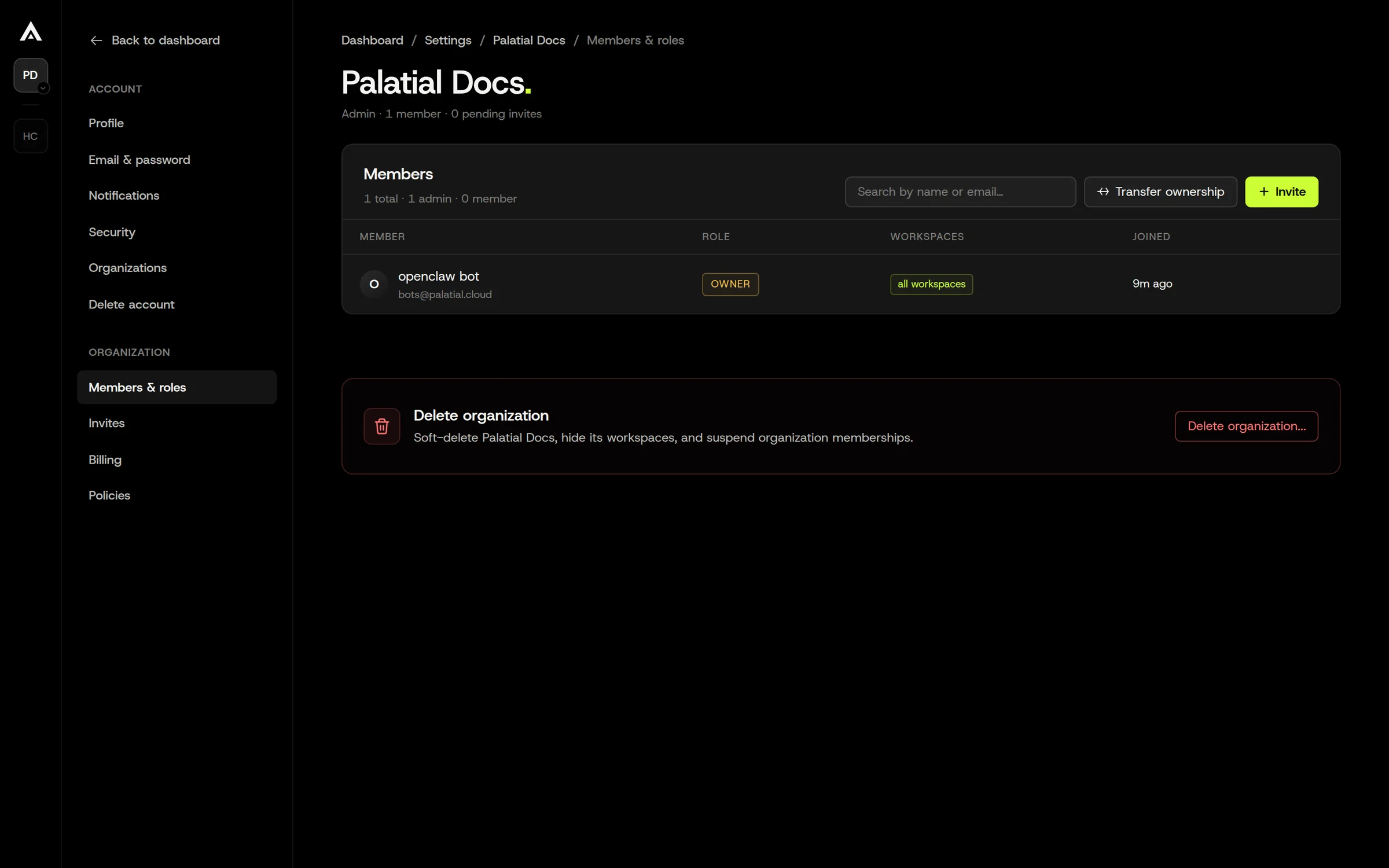
There are three: Owner (exactly one per organization, the person who created it or received ownership), Admin, and Member.
| Can | Owner | Admin | Member |
|---|---|---|---|
| See the organization and its members | ✓ | ✓ | ✓ |
| Browse the Organization Library and import from it into a workspace they can edit | ✓ | ✓ | ✓ |
| Rename the organization, change organization settings and policies | ✓ | ✓ | |
| Invite members, change member roles, remove members | ✓ | ✓ | |
| Create workspaces | ✓ | ✓ | only if the policy “Members can create workspaces” is on |
| Publish (promote) assets to the Organization Library | ✓ | ✓ | only if the policy “Members can promote to library” is on |
| Remove or refresh Organization Library entries | ✓ | ✓ | |
| Revoke any workspace API key in the organization | ✓ | ✓ | |
| Change the plan / subscription | ✓ | ✓ | |
| Transfer ownership (to an existing admin) | ✓ | ||
| Delete the organization (only after all other members are removed) | ✓ |
Buying tokens is not owner-only: anyone with edit rights in a workspace can open the Add tokens dialog. Plan upgrades are shown to organization admins; members see a “Plan changes are managed by your organization admins” notice with the admin names.
Workspace roles
Section titled “Workspace roles”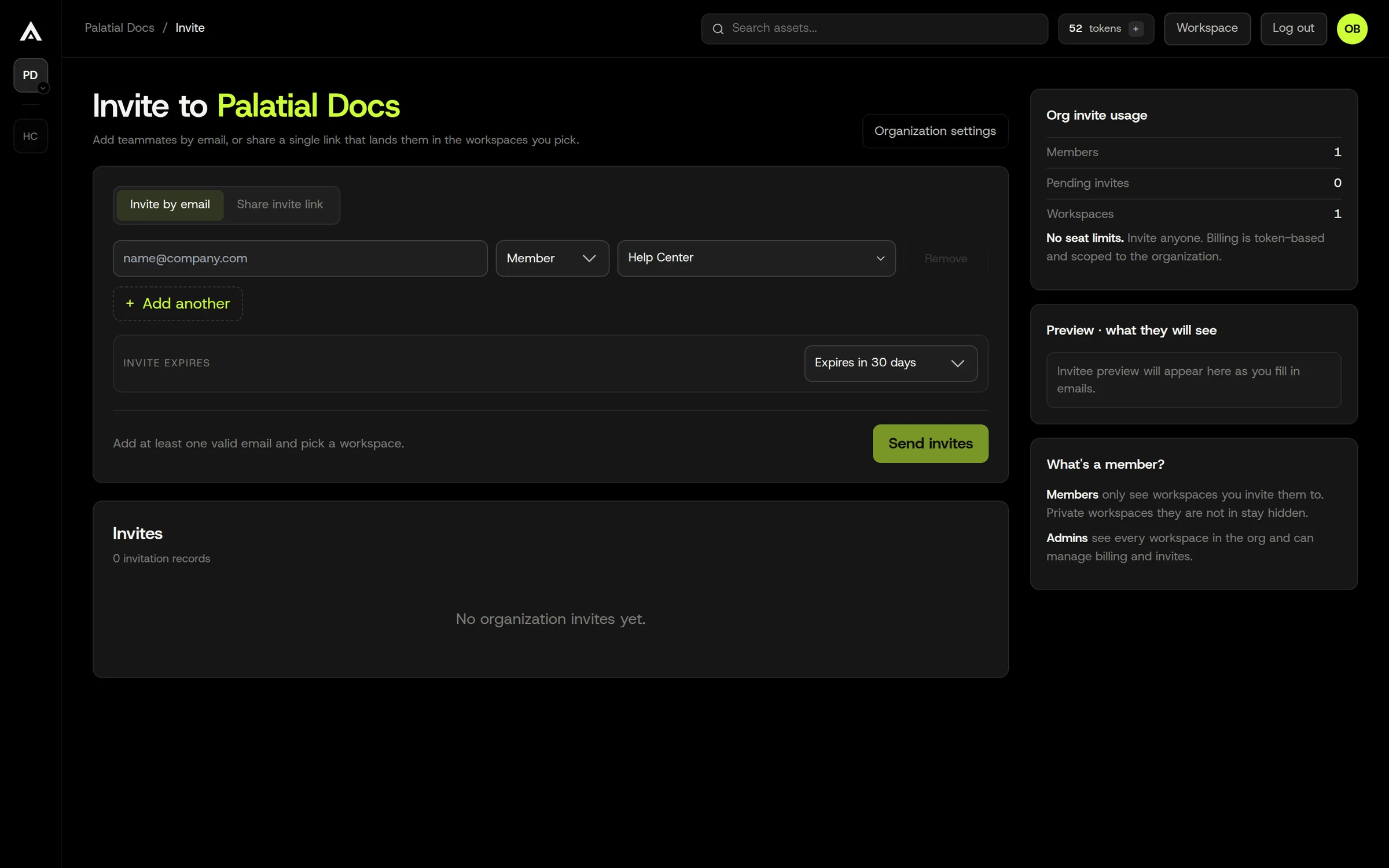
A workspace has an owner (its creator), plus members who are either Member (can edit) or Guest (view only). In the members table the dropdown shows exactly these two choices.
| Can | Member (edit) | Guest (view) |
|---|---|---|
| See projects and assets in the workspace | ✓ | ✓ |
| Open the viewer | ✓ | ✓ |
| Read Agent conversations | ✓ | |
| Download a completed export | ✓ | ✓ |
| Create assets, talk to the Agent, confirm builds | ✓ | |
| Apply Edits, Reprocess, Regenerate, Retry | ✓ | |
| Create variants | ✓ | |
| Request an export, retry a failed export, cancel a build | ✓ | |
| Delete or archive assets | ✓ | |
| Rename the workspace | ✓ | |
| Invite, remove, change roles of workspace members | ✓ | |
| Create workspace API keys | ✓ | |
| Revoke a workspace API key | own keys only; organization admins can revoke any | |
| Add tokens | ✓ |
Members with edit rights and workspace owners have the same set of asset and team permissions; the owner is simply the member who cannot be removed. Organization owners and admins have all of the above in every workspace, whether or not they were added to it.
Common questions
Section titled “Common questions”- I invited someone and they can’t see the project. They were added to the organization but not the workspace. Add them to the workspace from its Members page.
- A Guest needs to make one change. Switch them to Member. There is no per-asset override and no time-limited edit grant.
- Who can spend tokens? Anyone who can confirm a build: workspace Members, workspace owners, and organization owners/admins.
- Who can see an API key? The full key is returned once, at creation, to the person who created it. Afterwards the list shows key names, creator, and last-used time; the key value cannot be retrieved again. Keys are workspace-scoped and can be revoked by their creator or by an organization owner/admin.
Related: Organizations vs workspaces, Tokens.