Organizations vs workspaces
Palatial has two containers. Getting them straight explains most access questions.
| Organization | Workspace | |
|---|---|---|
| What it is | Your company or team. The billing entity. | A working area inside an organization. A team, a project line, a customer. |
| Owns | Members, plan and subscription, the shared token balance, the Organization Library, organization policies. | Projects and assets, workspace members, API keys. |
| How many | Usually one per company. You can belong to several (a consultant working with two clients). | As many as your plan allows per organization. |
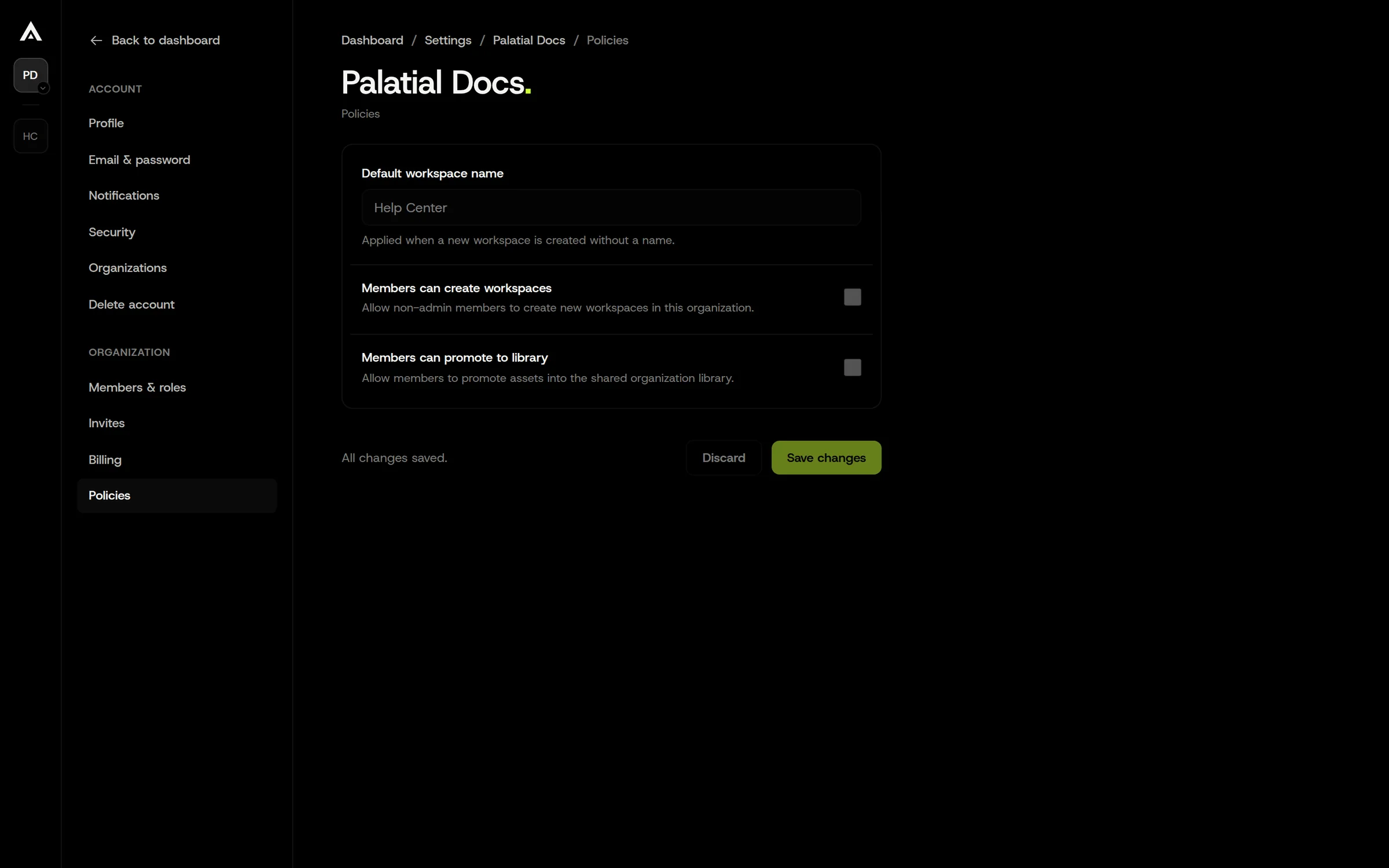
| Who creates it | Any signed-in user can create an organization and becomes its owner. | Organization owners and admins; members too if the policy “Members can create workspaces” is on. |
| Visibility | Members see the organization, its member list, and its library. | Only workspace members see its projects. Being in the organization does not grant access to every workspace (except for organization owners and admins, who can access all of them). |
Organization: Acme Robotics├─ Organization Library (published assets, visible to all Acme members)├─ Workspace: Gripper team│ ├─ Project: parallel_gripper_v3│ └─ Project: suction_cup├─ Workspace: Warehouse sim│ └─ Project: euro_pallet└─ Workspace: Customer POC (external collaborator invited here only)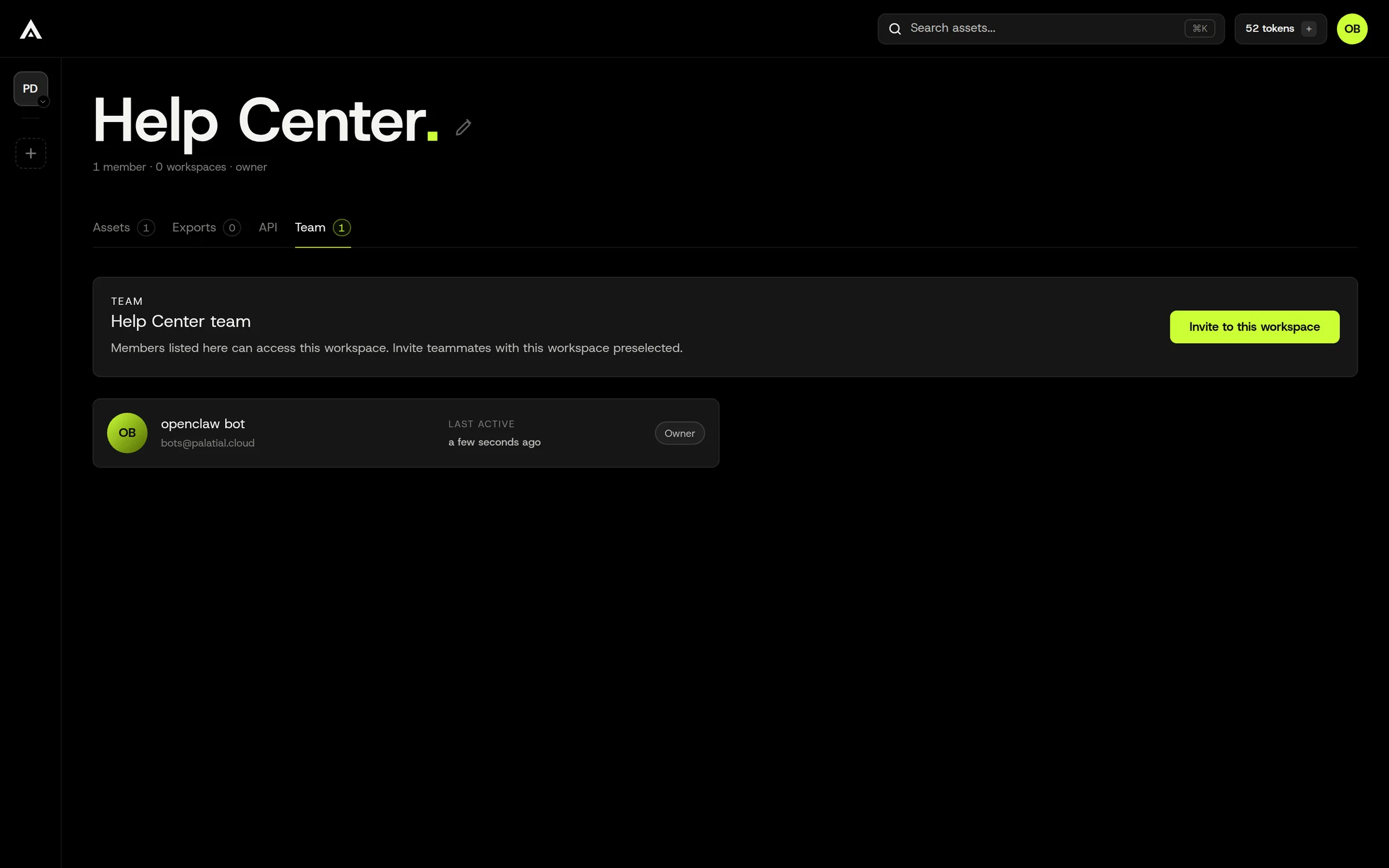
Typical setups
Section titled “Typical setups”- Small team: one organization, one workspace. Everyone is a member of both.
- Multiple teams: one organization, a workspace per team. Shared assets go to the Organization Library.
- External collaborators: invite them to a single workspace as a Member (edit) or Guest (view). They see nothing else in the organization.
- Consultancy: you belong to several organizations; switch with the organization menu.
Creating and switching
Section titled “Creating and switching”- Create an organization from the organization menu. You become its owner, and a first workspace is created with it (named after the organization unless you set a default workspace name). The first free organization you own receives the free plan’s monthly token grant; additional free organizations you create start at zero tokens.
- Create a workspace from the organization menu. Give it a name and add members. Plans can cap the number of workspaces per organization.
- Switch organization or workspace from the top-left menu.
- Rename either from its settings page (organization owner/admin for the organization; a workspace Member for the workspace).
Tokens and workspaces
Section titled “Tokens and workspaces”Tokens belong to the organization and are shared by all of its workspaces; there is no per-workspace allocation. The workspace header shows the organization balance. How tokens are consumed.
Plans also cap active assets per workspace. Archived, expired, failed, and cancelled assets don’t count; creating an asset or importing one from the library is blocked when the cap is reached. The exact caps depend on your plan; ask your organization admin or check the capacity summary in the workspace.
API keys
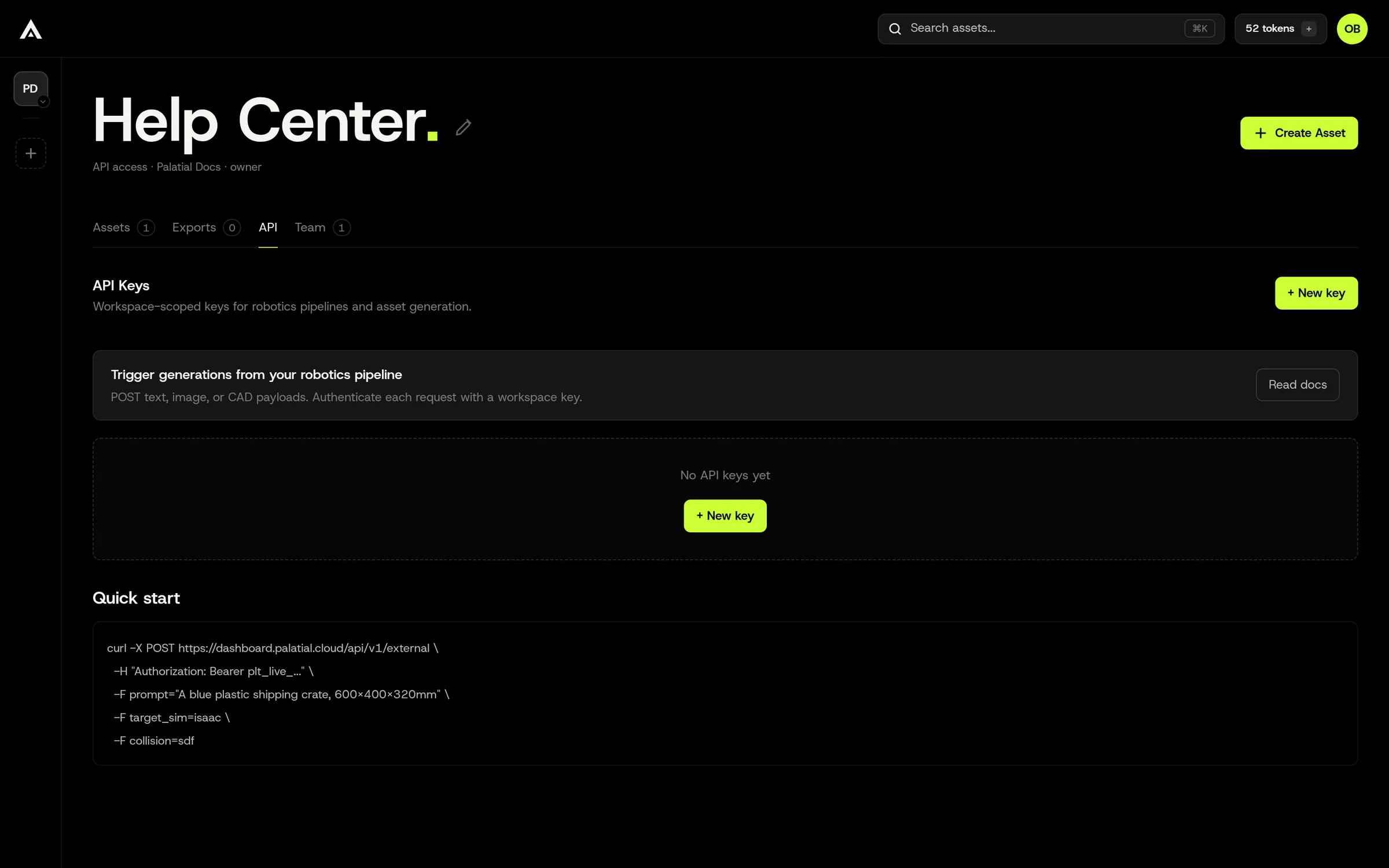
Section titled “API keys”API keys are workspace-scoped: a key creates and reads assets in one workspace. Any workspace Member can create keys from workspace settings and revoke their own; organization owners and admins can revoke any key in the organization. The key value is shown once at creation. Using the API.
Related: Roles and permissions, Libraries.