Text to Sim
Text to Sim builds an asset from a description alone. Palatial generates reference images from your prompt, picks (or lets you pick) the best one, reconstructs a mesh from it, then runs the shared simulation stages: segmentation, textures, physics, collision, and validation. Use it when you have no photos or CAD, or when you want a plausible generic object fast.
When to use it
Section titled “When to use it”- You need a generic object: a warehouse bin, a wrench, a coffee mug, a pallet.
- You want to prototype a scene before sourcing real assets.
- You need several plausible variations of the same object type. See Variants.
Use Image to Sim when the object has to match a specific real thing, and CAD to Sim when you already have geometry.
Walkthrough
Section titled “Walkthrough”-
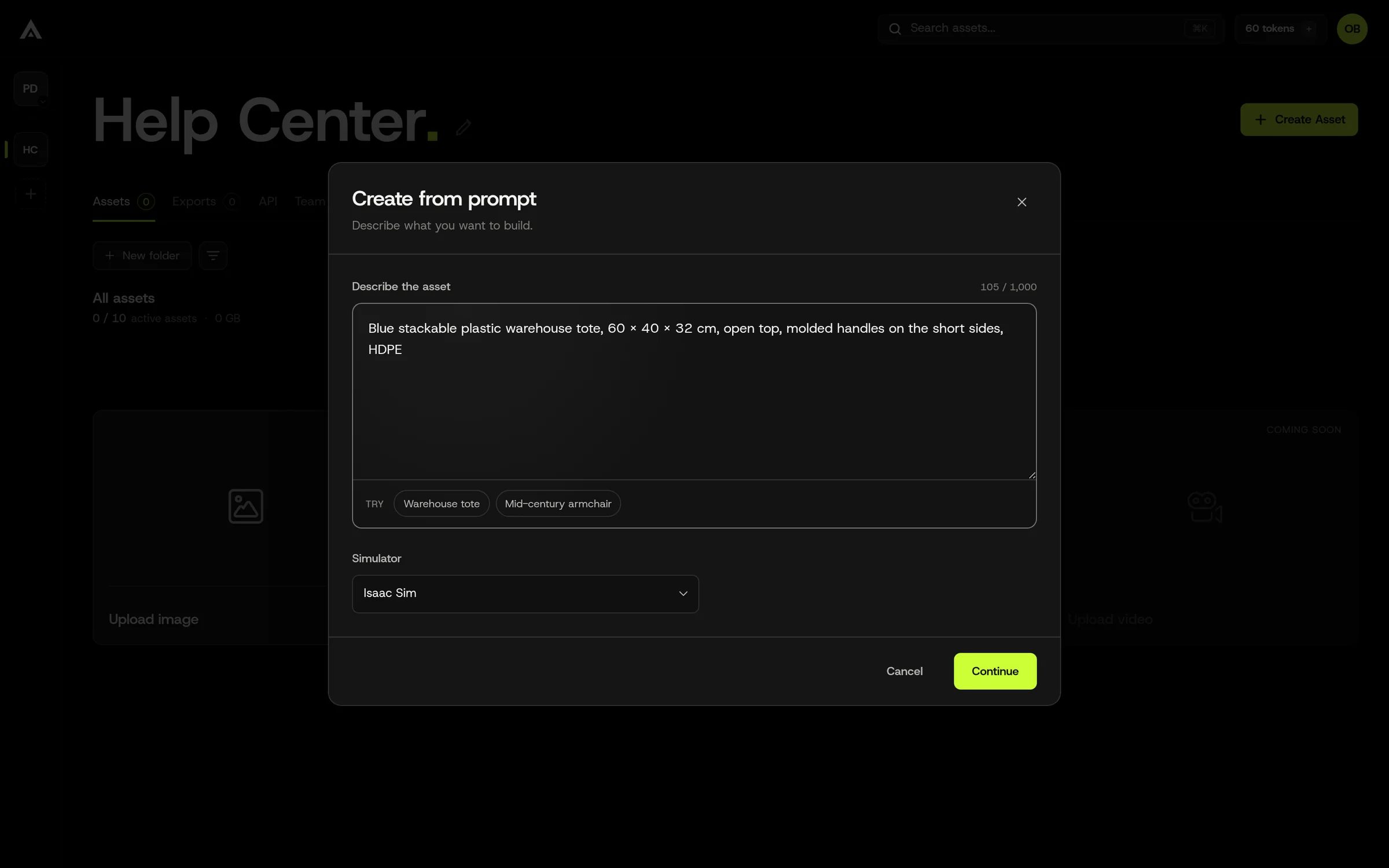
Start with a prompt. In the workspace, click Start with a prompt, describe the object, pick the target simulator, and click Continue.
-
The Agent reads your description and names the asset. Say what the object is, what it’s made of, its approximate size, and anything that matters physically.
-
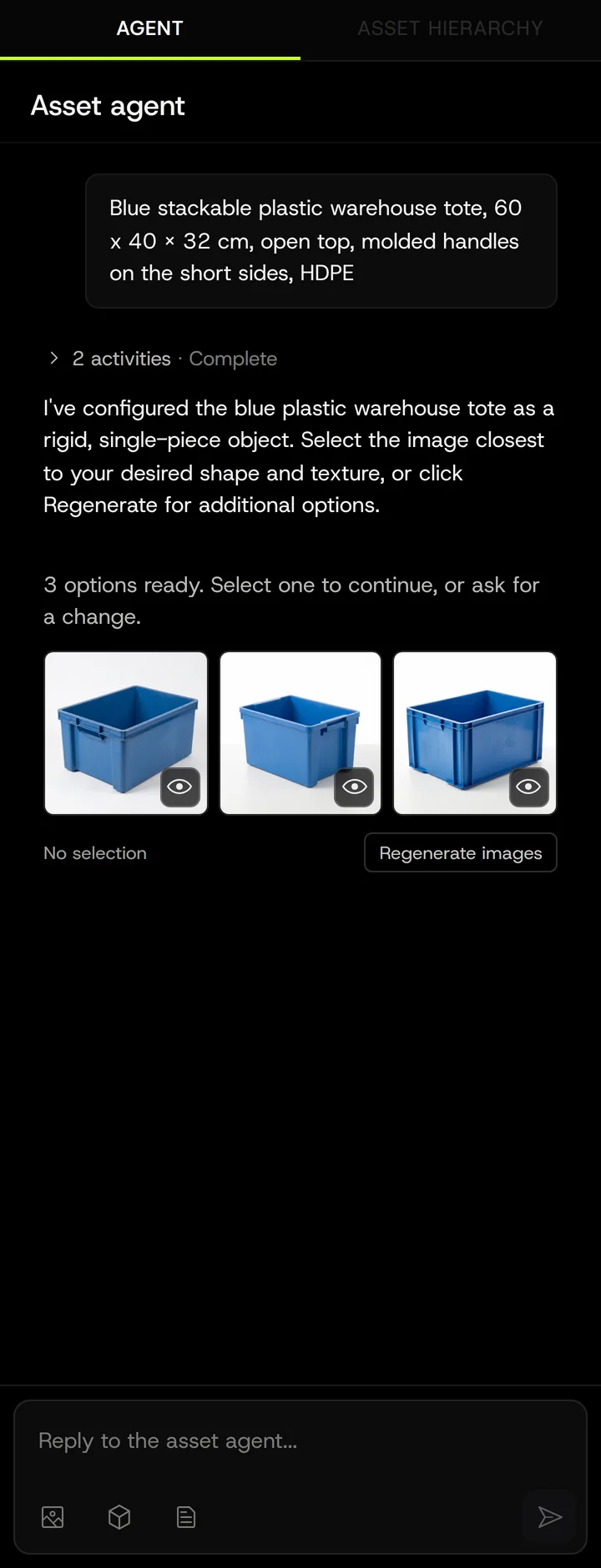
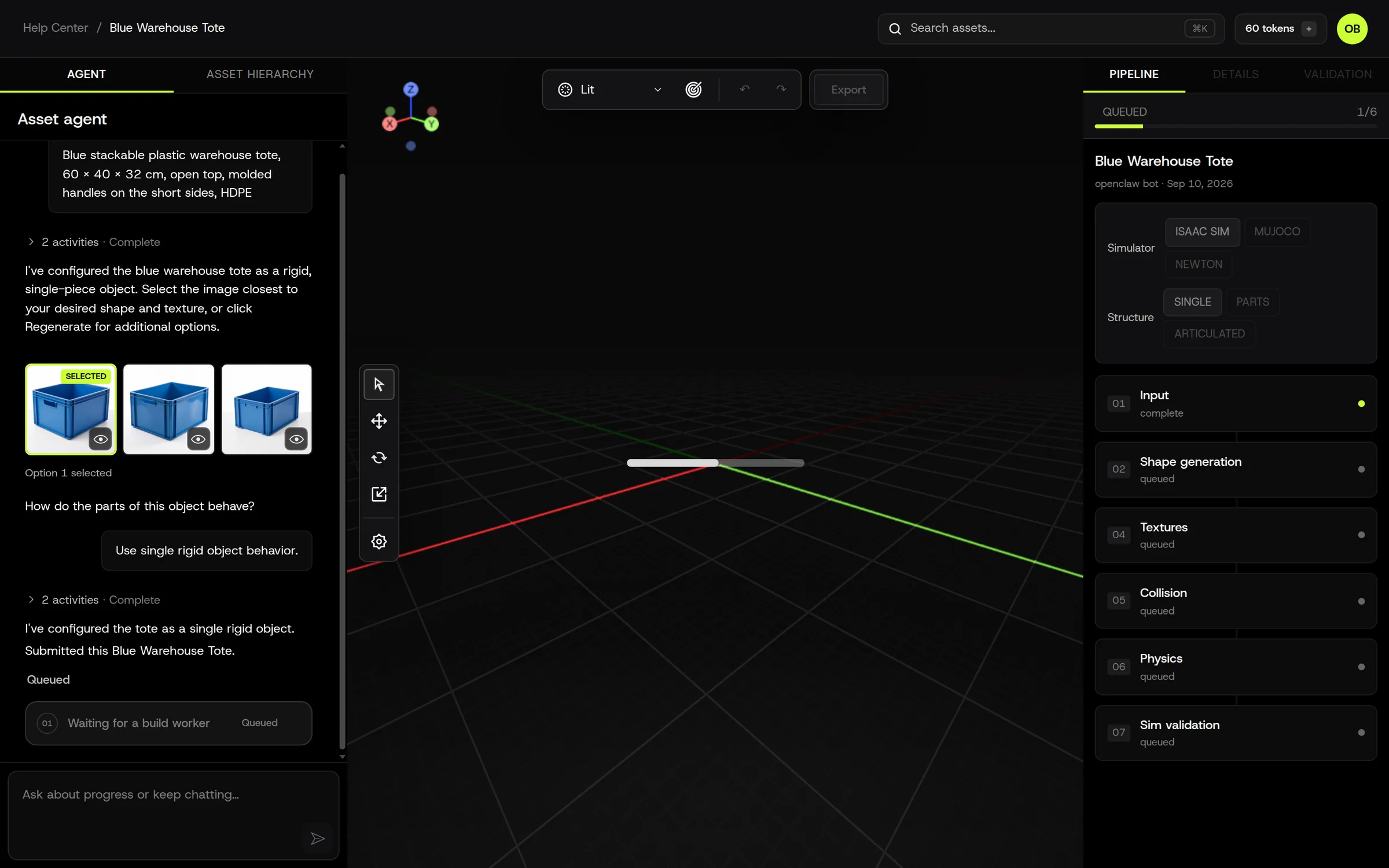
Pick a reference. The Agent generates three candidate images. Click the one that best matches what you meant, or Regenerate images for a new set. You can also attach your own photo to steer it.
-
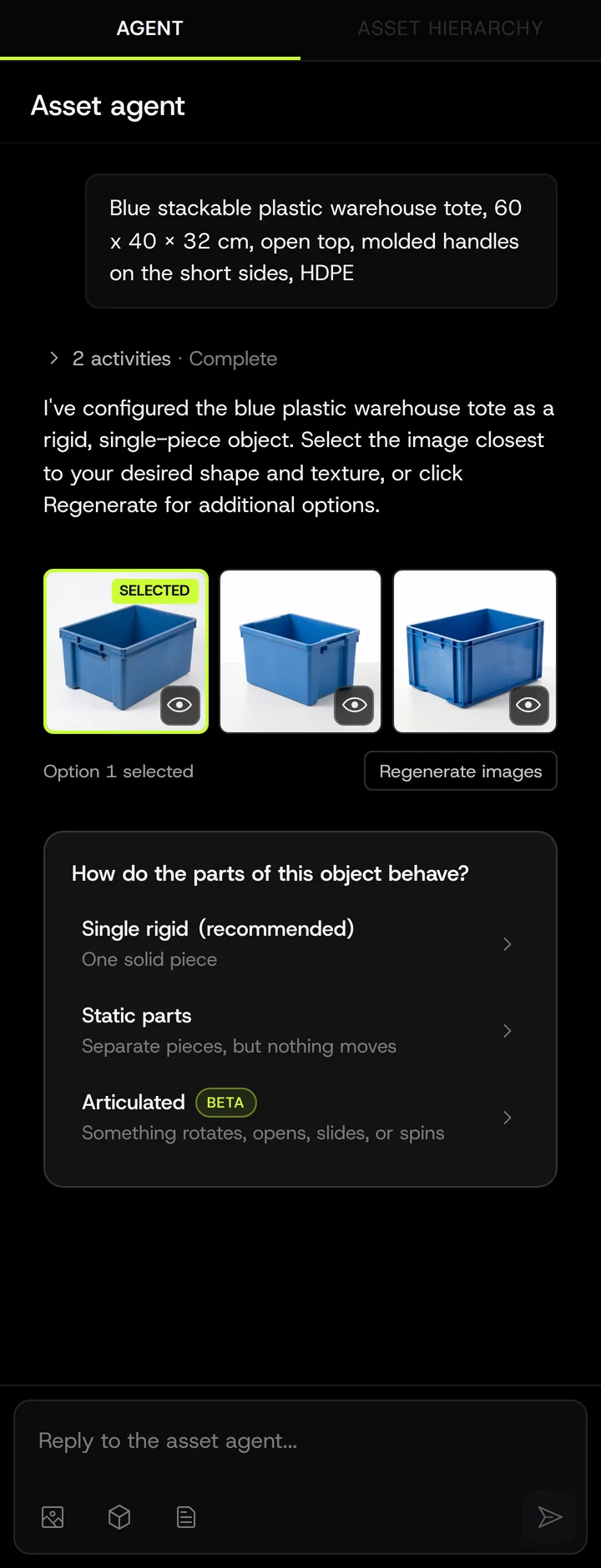
Answer the Agent’s question. For most objects it is how do the parts of this object behave? with three choices: Single rigid, Static parts, or Articulated. Click one, or type your answer.
-
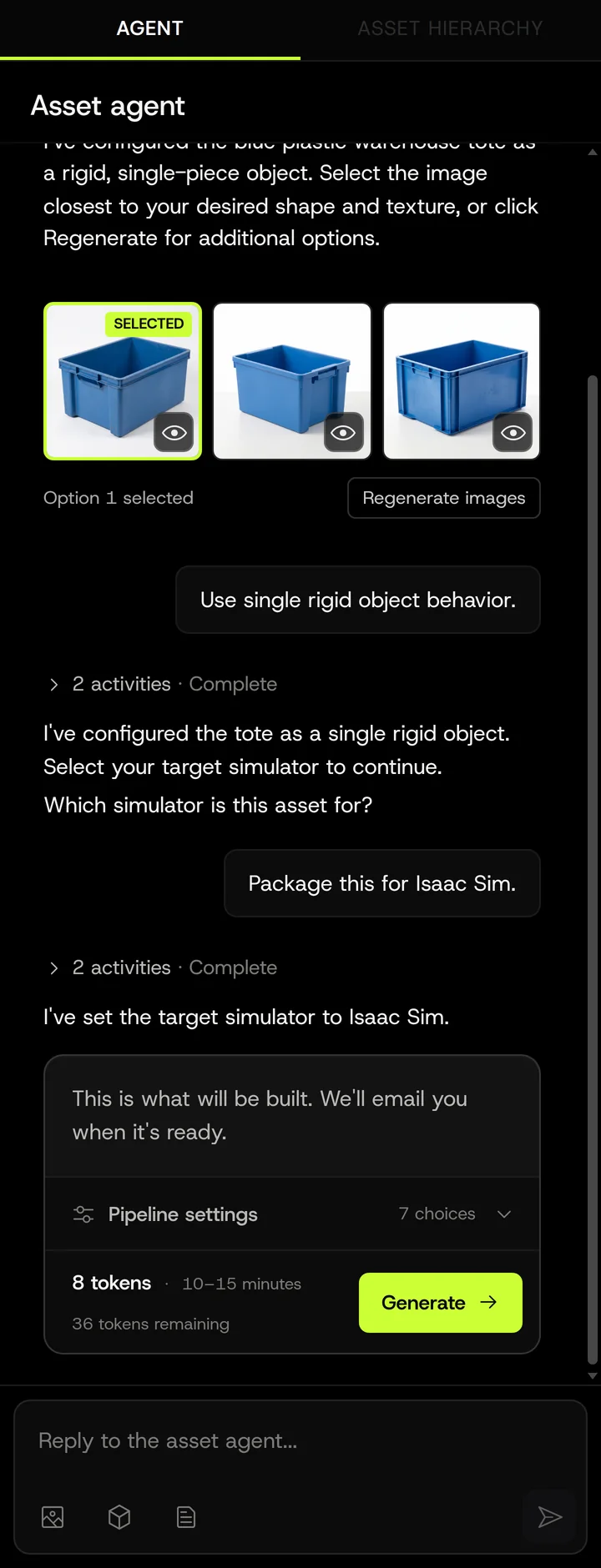
Confirm. The card shows what will be built, the estimated time, and the token cost. Expand Pipeline settings to check size, structure, target simulator, and collision. Click Generate.
-
Wait for the build to complete. Progress shows in both the Agent panel and the Pipeline tab. You’ll get an email when it’s ready; then inspect, edit, or export.
Writing prompts that work
Section titled “Writing prompts that work”The prompt is used twice: to generate the reference images and later, together with the selected image, to reconstruct the mesh. Detail in the prompt shows up in both.
| Do | Why |
|---|---|
| Name the object type first: “fire extinguisher”, “euro pallet”, “ratchet strap” | The type drives the shape prior. |
| Give a material: “powder-coated steel”, “translucent HDPE”, “raw pine” | Materials drive texture generation and the physics estimate (density, friction). |
| Give a size, with units: “about 45 cm tall”, “600 x 400 x 320 mm” | The Agent uses it for real-world scale. Without it, scale is inferred and may be off. |
| Describe the resting pose: “standing upright on its base” | Sets the rest pose used in validation. |
| Mention moving parts: “hinged lid”, “two drawers”, “trigger” | Tells segmentation what to look for when Behavior is Parts or Articulated. |
| Avoid | Why |
|---|---|
| One-word prompts (“banana”) | Works, but geometry and materials are generic. |
| Scene context (“on a workbench in a garage”) | The reference generator may include the bench. Describe the object, not the scene. |
| Style words (“cinematic”, “4k render”) | Adds nothing to geometry; can bias toward stylized references. |
| Multiple objects in one prompt | Text to Sim builds one object per asset. Make a separate asset per object. |
Good examples:
- “Red ABC dry-chemical fire extinguisher, 5 lb, steel cylinder with black valve, hose and nozzle, standing upright. About 40 cm tall.”
- “Blue stackable plastic warehouse tote, 60 x 40 x 32 cm, open top, molded handles on the short sides.”
- “Wooden kitchen stool, four legs, round seat, unfinished pine, 45 cm seat height.”
Variants
Section titled “Variants”Text to Sim is the only input type where you can ask for multiple variants in one go: several assets from the same prompt with different generated references. Each variant is priced separately on the confirmation card. Variants covers how they relate to the parent and how to promote one.
Settings you’ll see
Section titled “Settings you’ll see”The Agent sets these for you. You can change them in chat (“make it articulated”, “target MuJoCo”) or in the Pipeline panel before confirming.
- Behavior: Single object / Parts / Articulated
- Target simulator: Isaac Sim / MuJoCo / Newton
- Physics type: Rigid body / Soft body
- Shape model: choose from the options offered for your build and review the estimate before confirming.
- Mesh quality, triangle count, decimation: defaults are right for most cases
Every setting is explained in How the pipeline works.
Common problems
Section titled “Common problems”- The reference images don’t look like what I described. Add material and shape words, remove scene context, regenerate. Or attach a photo; the Agent will use it as the identity.
- Scale is wrong. Say the size in the prompt with units, or fix it afterwards with Apply Edits > scale. See FAQ: wrong scale.
- Parts are fused. Behavior was Single object. Regenerate with Parts or Articulated. See Editing.
More in Why did my asset fail?.